Setting up a watch folder
A watch folder automatically uploads files from a designated location on your computer or storage system to your MediaLab environment. There are several ways to set one up, depending on your operating system and workflow.
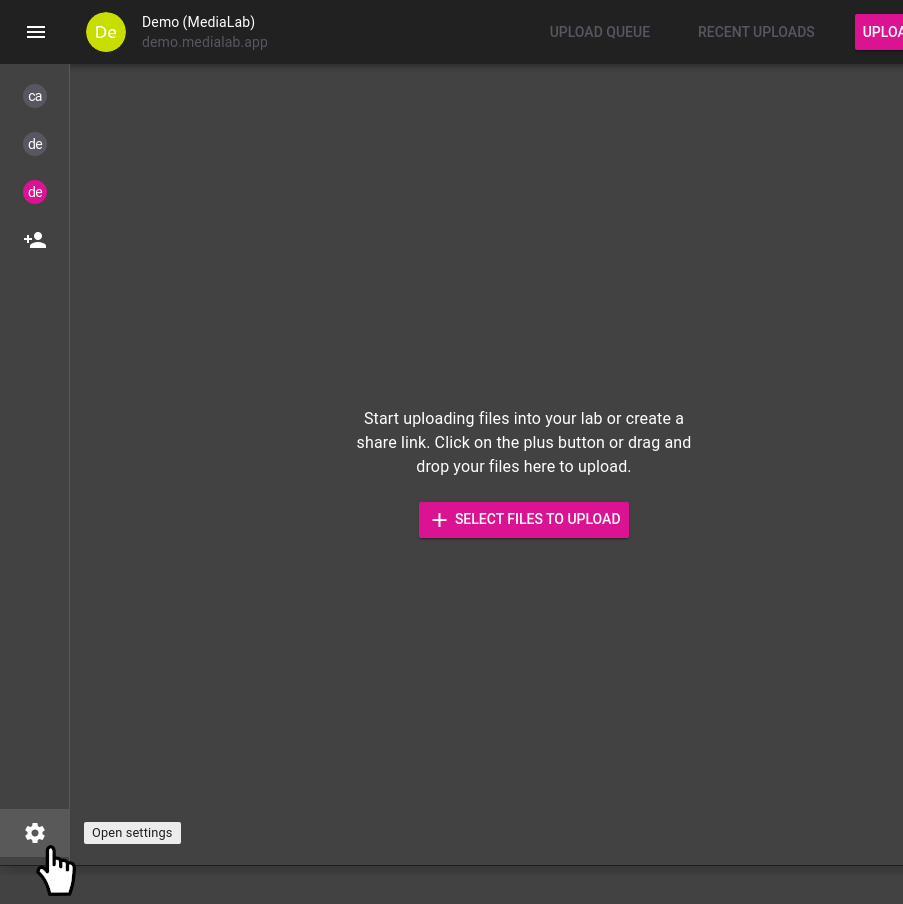
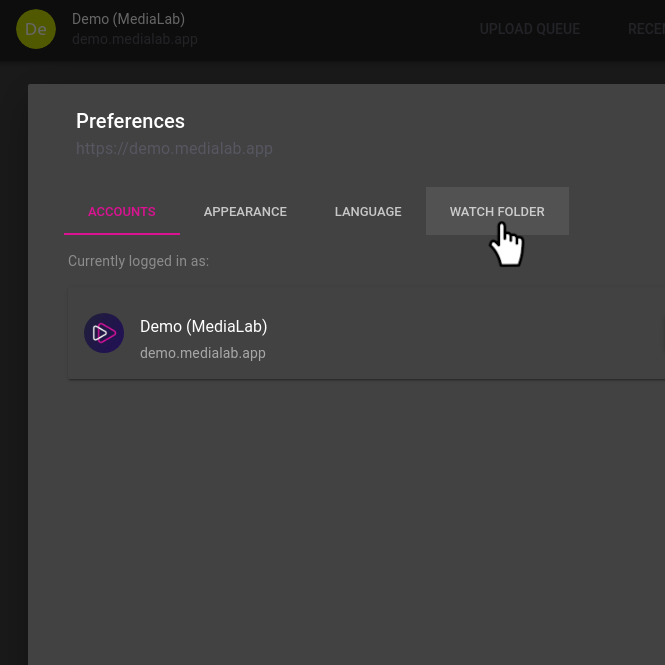
Using the MediaLab Connect Desktop App (Windows, macOS, Linux) If your computer's operating system is Windows, macOS or Linux, you can install our desktop app. This app has the ability to upload files from your watch folder. Follow the steps below after setting up your account.
- Open Settings.
- Go to the Watch folder tab.
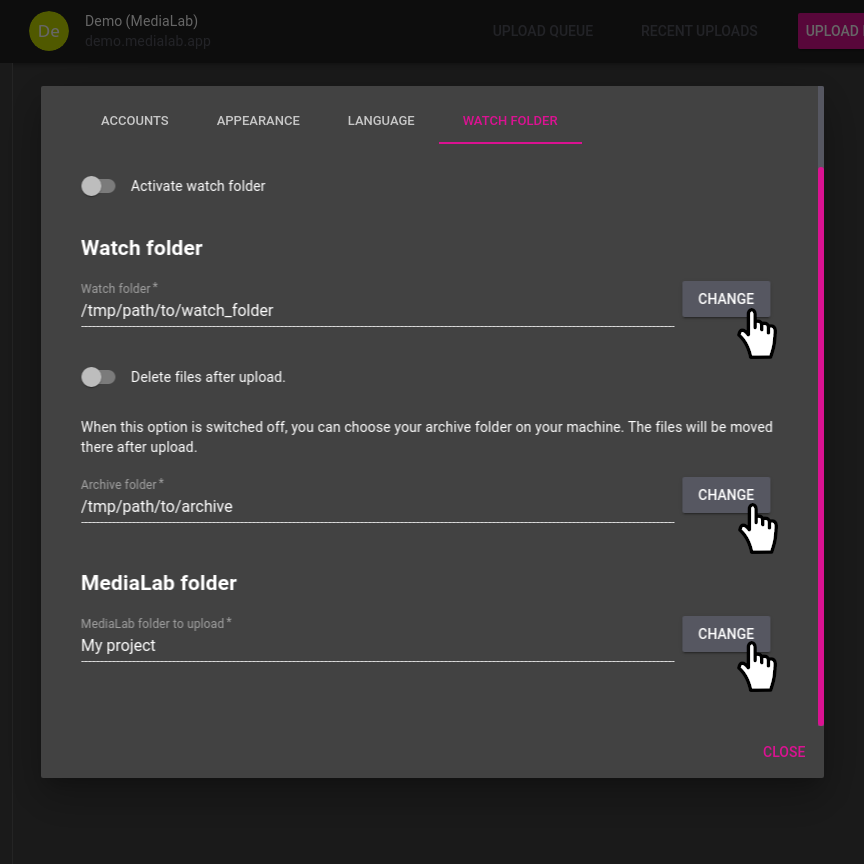
- Configure:
- The local watch folder containing files to upload.
- An optional archive folder for files after upload.
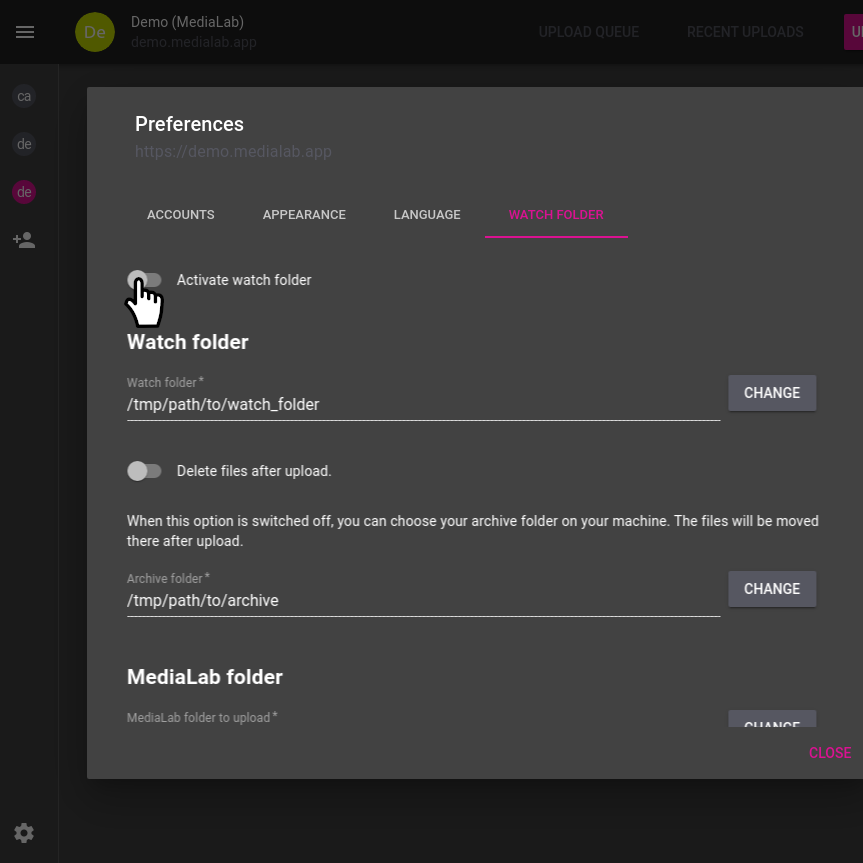
- The MediaLab folder where files should be uploaded Activate the watch folder.

Using a Shell Script (bash)
MediaLab’s shell script is ideal for restricted environments such as NAS devices. Requires bash, cURL, and python3.
- Generate a Private Token in MediaLab → Preferences → API Access.
- Copy medialab.env.example to medialab.env.
- Set your Private Token and Lab URL in medialab.env.
- Set up the watch directory structure (see README.md in the script link).
- Configure a cronjob or scheduled task to run the script periodically.
Using a Shell Script (Windows PowerShell)
- Add an FTP upload profile in MediaLab → Settings → FTP upload.
- Enter your MediaLab FTP server location in the PowerShell script.
- Add your FTP username and password to the script.
- Schedule the script to run periodically via cronjob or task scheduler.
Using the Pull Add-on
The Pull add-on allows you to create watch folders linked to cloud storage (e.g., S3 buckets, Azure containers). See our dedicated article for setup instructions.