---
title: 'Installing and logging in to MediaLab Connect'
description: 'How to install the MediaLab Connect desktop app on macOS, Windows or Linux and log in to your Lab.'
url: https://www.medialab.co/support/onboarding/desktop-app/installing-logging-ml-connect
---
# Installing and logging in to MediaLab Connect
You can download the latest version of ML Connect from the MediaLab download page. To ensure the installer hasn’t been
tampered with, check our file integrity page before proceeding.
### Installation Instructions
**macOS**
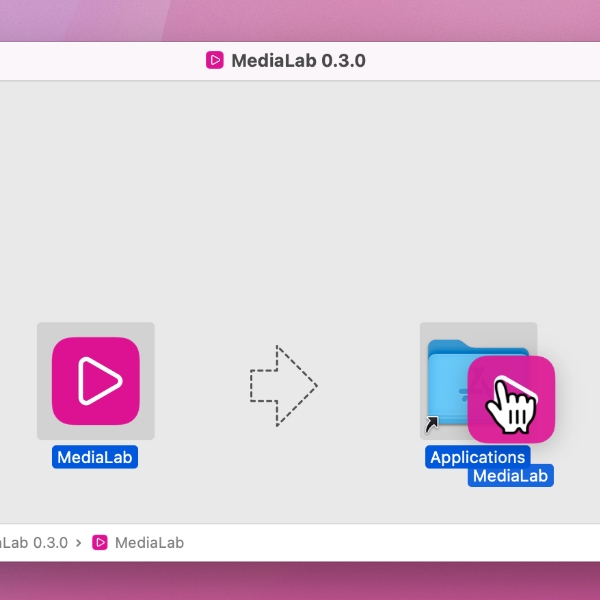
1. Open the downloaded .dmg file.
2. Move MediaLab to your Applications folder.
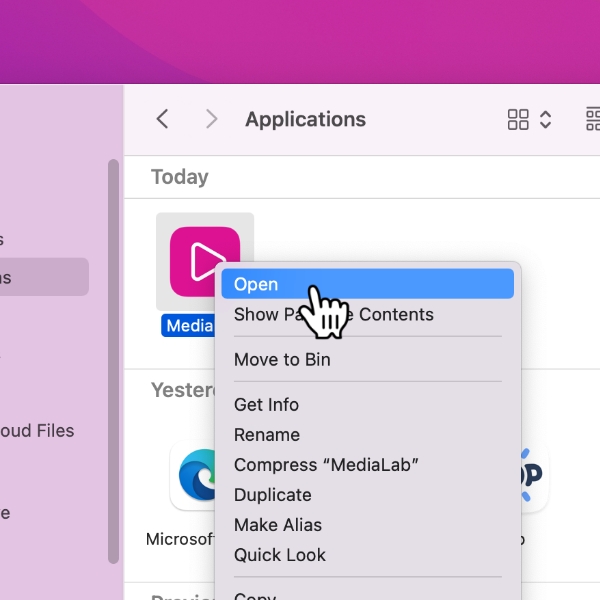
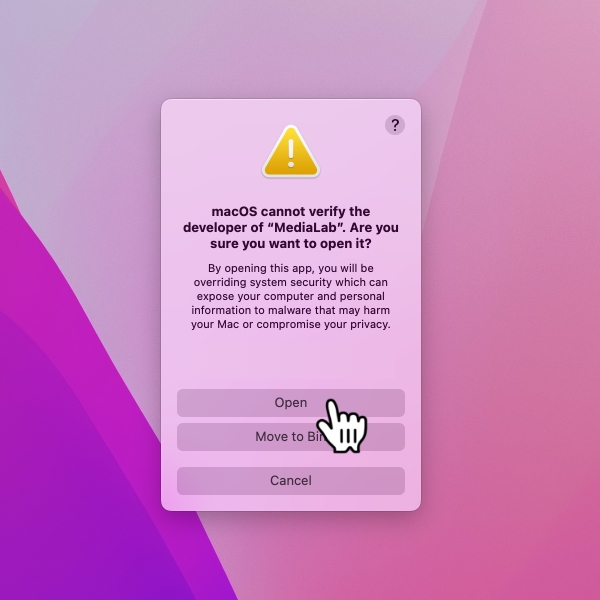
3. Right-click the app and choose Open (needed the first time due to security settings).
**Windows**
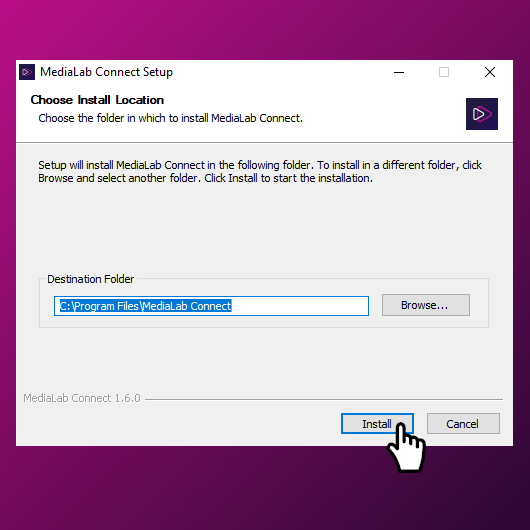
1. Open the downloaded .exe file (double-click).
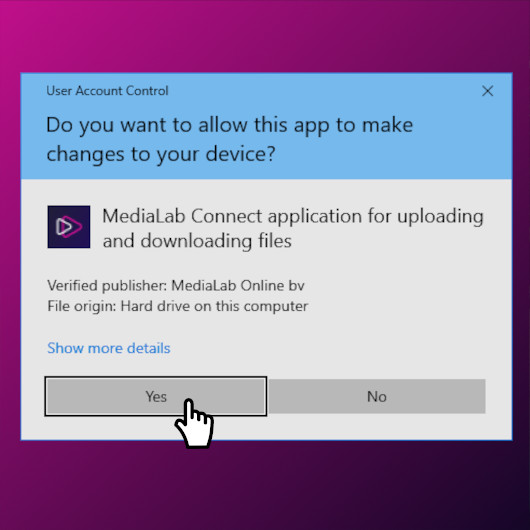
2. Click Yes to confirm installation.
3. Follow the step-by-step installation wizard.
**Linux (.deb with GUI)**
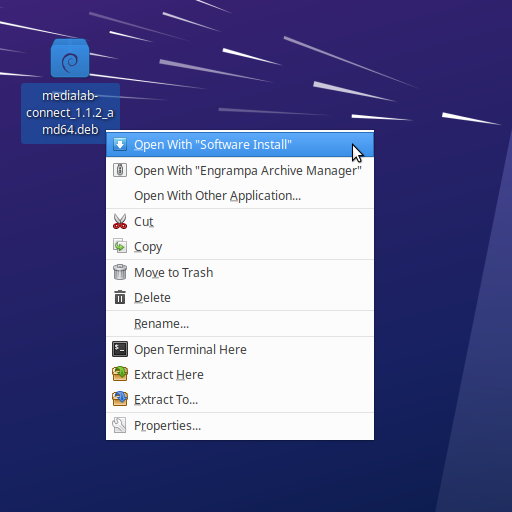
1. Locate the downloaded .deb file.
2. Right-click → Open With → Software Install.
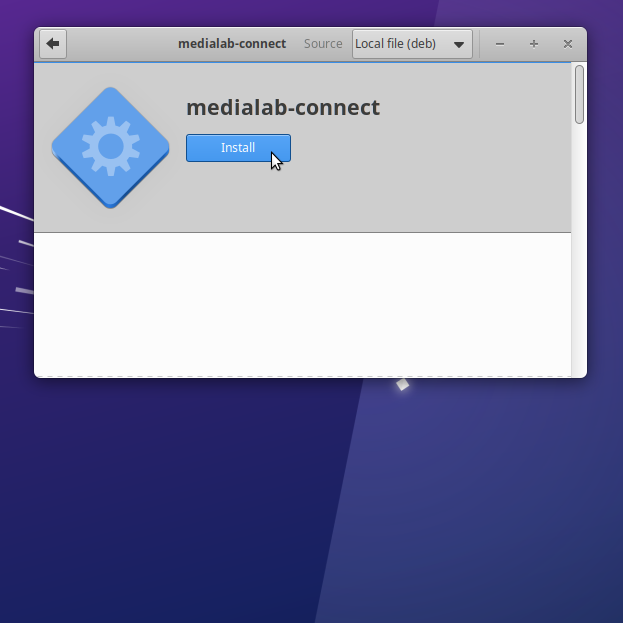
3. Click Install.
**Linux (.deb with command line)**
1. Open a terminal.
2. Navigate to the folder containing the .deb file.
3. Execute command after checking the version in .deb file\
`sudo dpkg --install "medialab-connect__amd64.deb"`
**Linux (AppImage with command line)**
1. Open a terminal.
2. Navigate to the folder containing the .AppImage file.
3. Execute commands after checking the version in .AppImage file\
`chmod +x "MediaLab_Connect-.AppImage"`\
`./"MediaLab_Connect-.AppImage"`
**Uploading with Connect**
To upload via MediaLab Connect, you’ll first need to log in using a private token.
1. Log in to MediaLab through your browser.
2. Go to Profile → API access (top right).
3. Click Generate private token.
- We recommend choosing no expiry date for long-term connections.
4. Open the Connect desktop app and add your account using your Lab URL and generated token.
5. In the app, go to Settings → Watchfolders to create or select a local folder. Any files placed in this folder will
automatically upload to MediaLab.
**Note:**The private token is linked to a single user account. All uploads made through Connect will appear under that
account