---
title: 'Downloading files with MediaLab Connect'
description: 'How to download files from MediaLab to your computer using the MediaLab Connect desktop app.'
url: https://www.medialab.co/support/onboarding/desktop-app/downloading-ml-connect
---
# Downloading files with MediaLab Connect
The ML Connect app provides a streamlined way to download media from MediaLab directly to your computer.
### Installing ML Connect
Before using this workflow, make sure ML Connect is installed on your PC. Installation instructions are available on the dedicated support page.
### Download Workflow
1. Navigate to the files you want to download in your MediaLab environment.
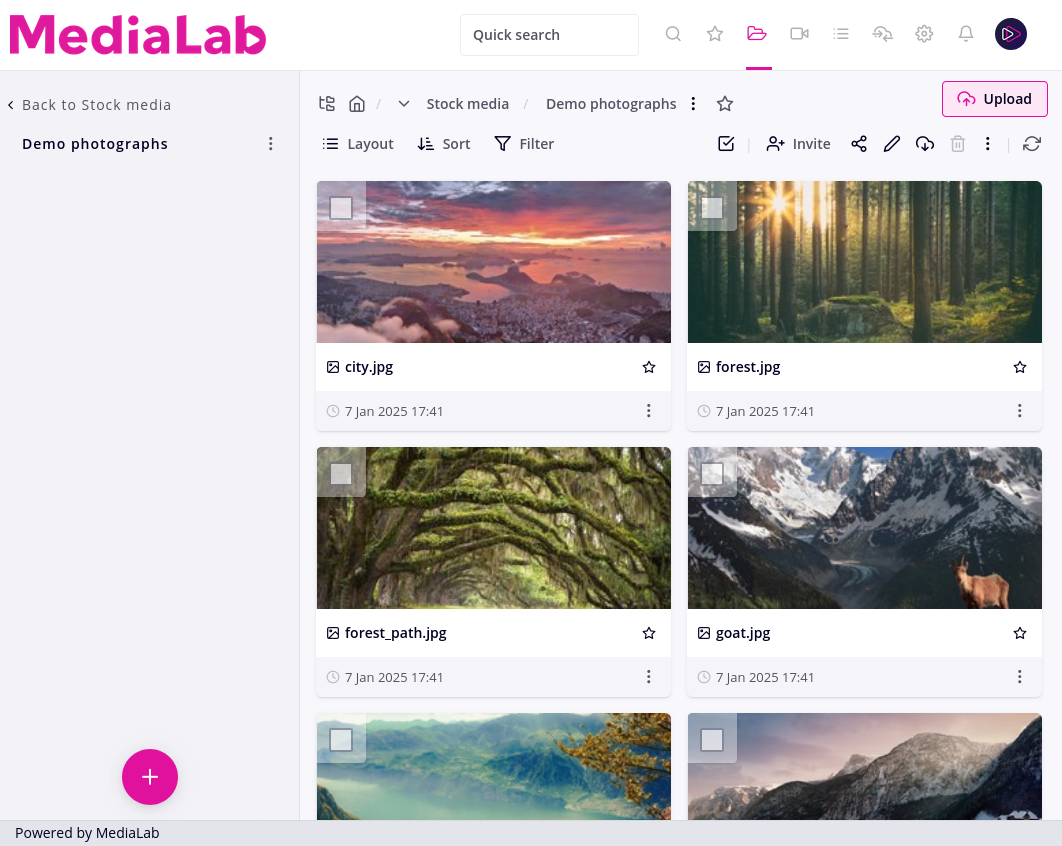
2. Select the files and click the Download button.
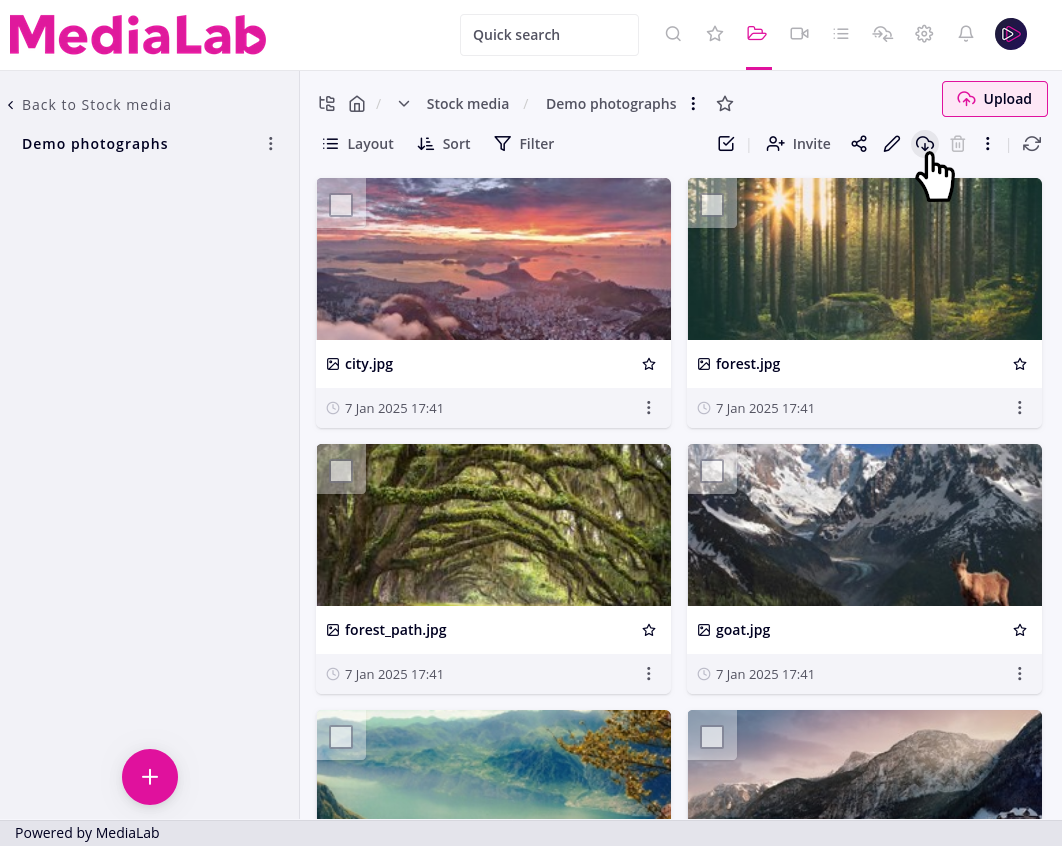
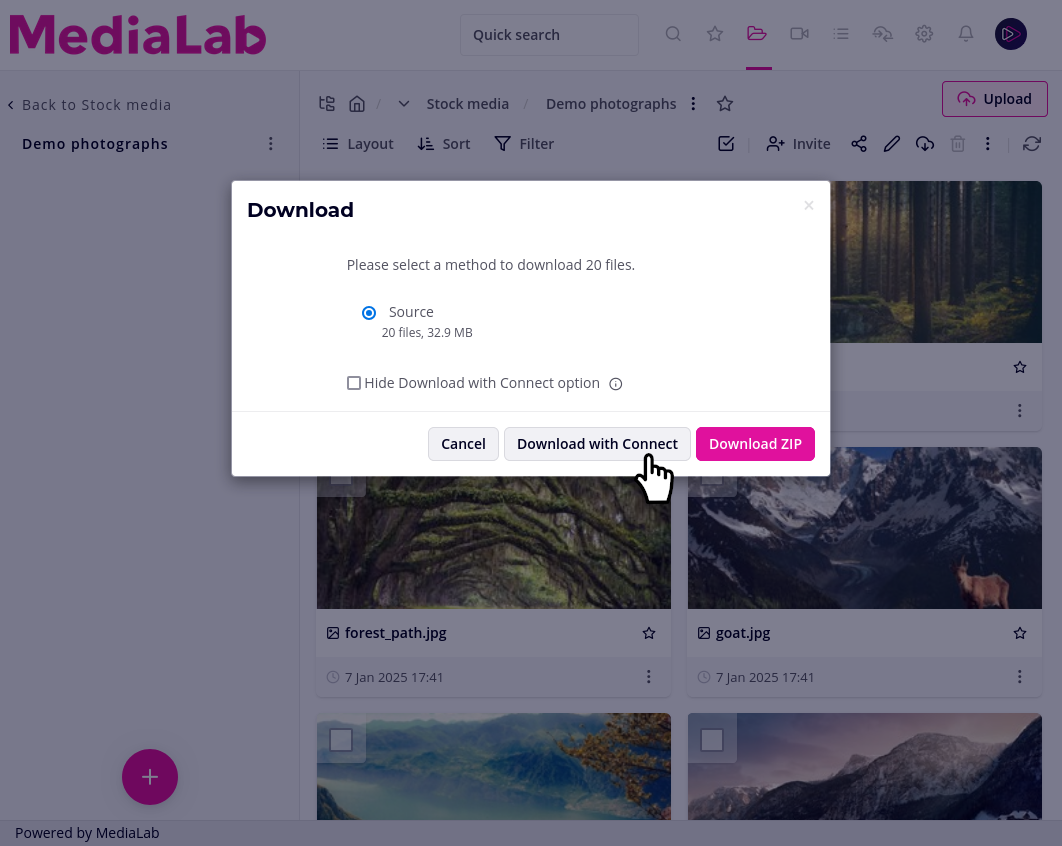
3. Choose _Download with Connect_.
4. The Connect app will open. Select your destination folder and configure any additional settings.
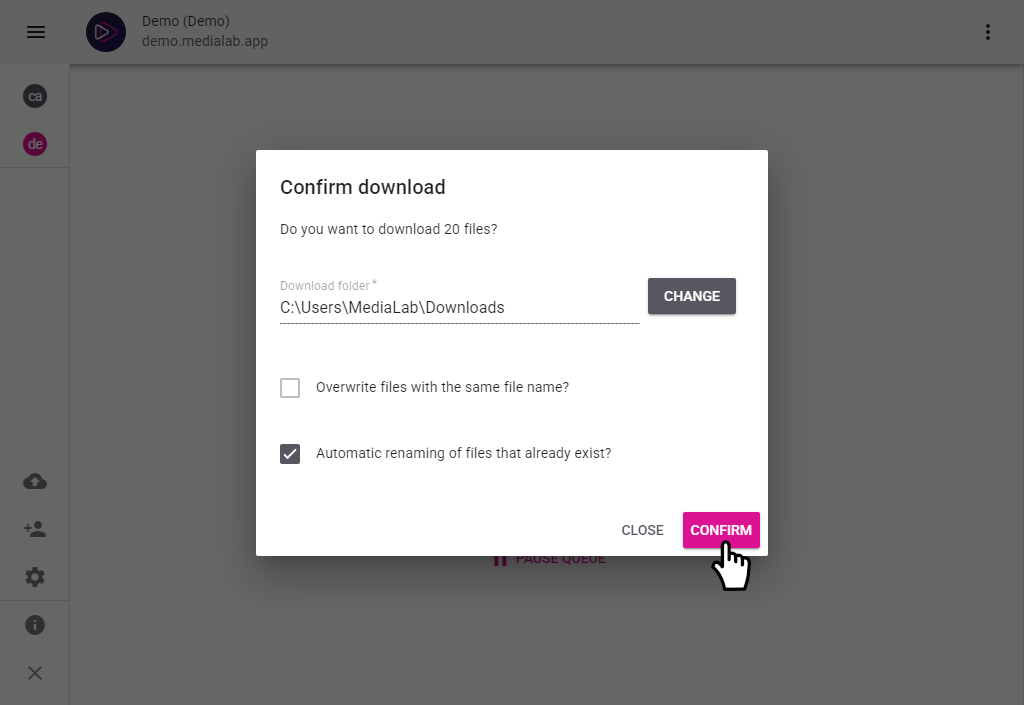
5. Click _Confirm_ to start the download.
Your files will now be transferred to your computer using ML Connect.
### Downloading with Connect (Push Downloads)
You can also automatically receive content pushed from MediaLab using Push destinations.
1. Once the app is installed, go to _Settings → Cloud connections_ in your MediaLab environment.
2. Select _MediaLab Connect_. You’ll receive a link to pair the app with your account (this can only be done on one computer).
3. A _Push destination_ will automatically be created after pairing.
4. Go to _Push destinations_, click the _Auto-push_ icon on the right,
and add your preferred _auto-push_ rules to automatically download new content to Connect.