---
title: 'Dark Mode'
description: 'How to switch MediaLab to Dark Mode for a low-light interface that reduces eye strain and improves readability.'
url: https://www.medialab.co/support/account/branding/dark-mode
---
# Dark Mode
We're excited to introduce Dark Mode for MediaLab! This feature allows you to customize your user interface (UI) experience to suit your preferences and working environment.
Dark Mode offers a sleek, low-light interface that reduces eye strain, enhances readability in dimly lit settings, and provides a modern aesthetic. Whether you're managing media assets late into the evening or simply prefer a darker theme, this option empowers you to tailor MediaLab to your needs.
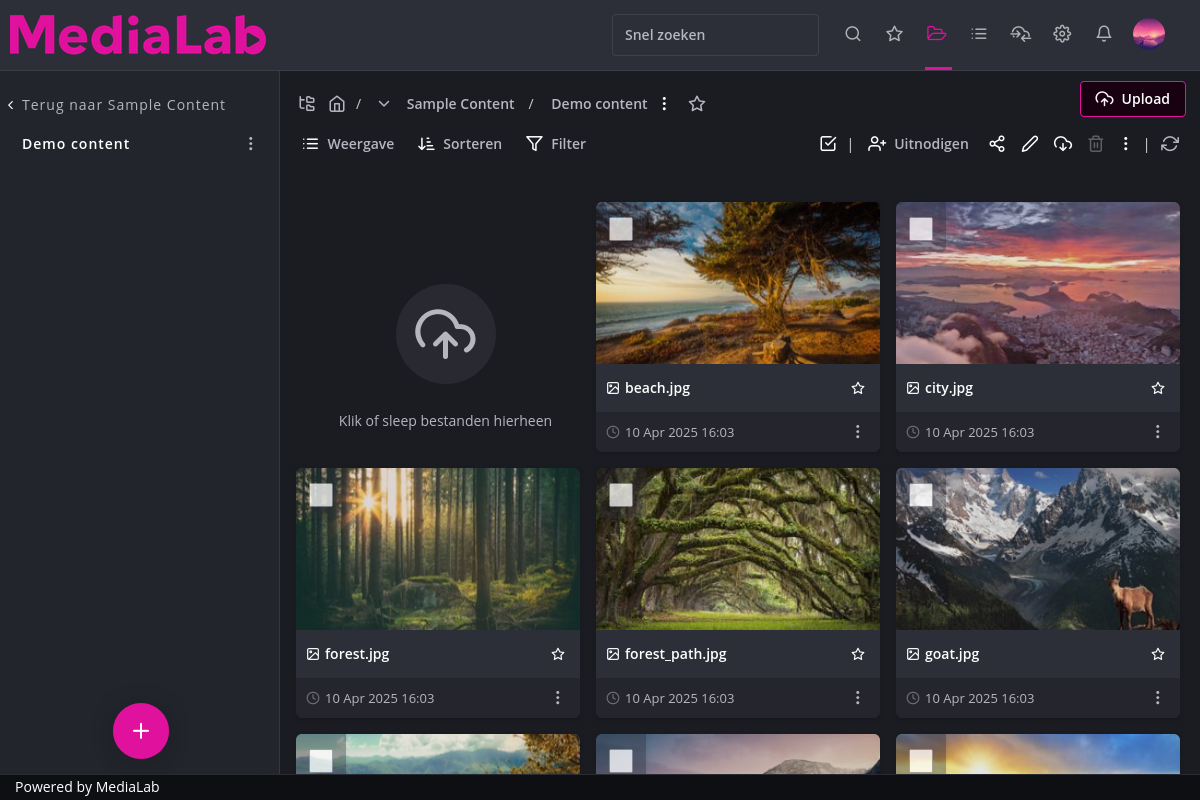 This is what MediaLab looks like in _dark_ mode
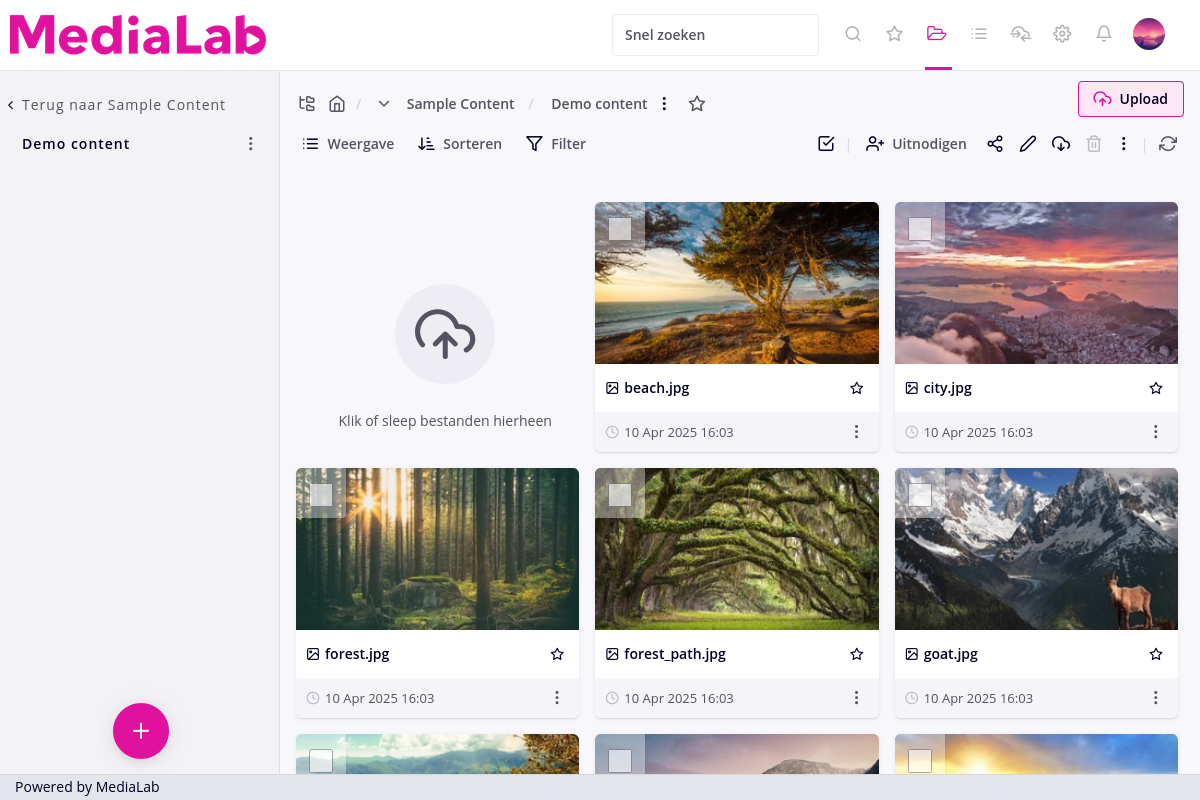 This is what MediaLab looks like in _light_ mode
### How does it work?
To enable Dark Mode, open the menu on the top right by hovering over your profile picture. Using the theme switch, you can choose Light, Dark or Automatic. Automatic means MediaLab will have the same theme as your operating system.
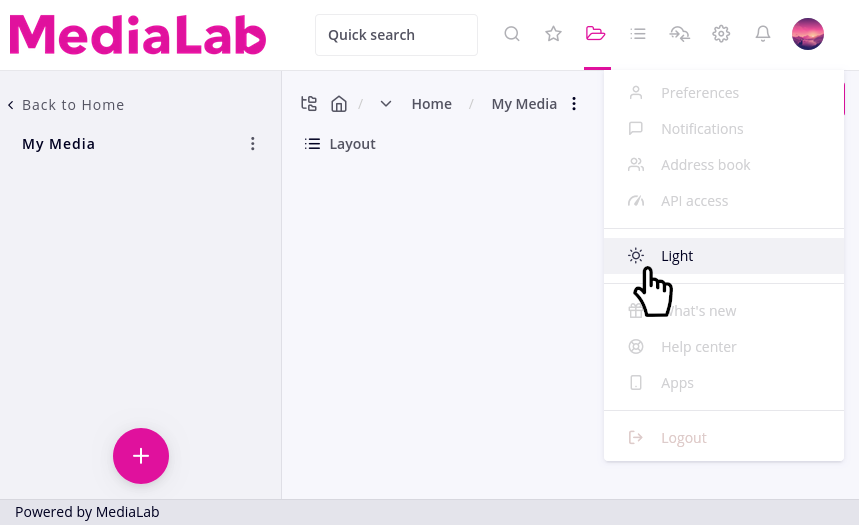 This is how you can switch between light and dark mode.